"It works on my machine" is one of the oldest problems in software. Your app runs on your laptop, then fails on the server because of a different Node.js version, a missing library or one setting nobody wrote down. Docker fixes this by packaging your app together with everything it needs, so it runs the same way everywhere.
This post covers what containers are and how they differ from virtual machines, running your first containers, writing a Dockerfile, keeping data with volumes, connecting containers with networks, and running a whole app with Docker Compose. Then come the best practices, the misunderstandings and mistakes nearly every beginner runs into, and a short introduction to Kubernetes.
I ran every command in this post with Docker 29 on Ubuntu, so all the output is real. To follow along you need a Linux machine (a cloud VM, a local VM or your own PC) or Docker Desktop on macOS or Windows. Basic terminal skills help. My SSH for Beginners post covers connecting to a server.
Why Docker?
Docker gives you four things that are hard to get any other way:
- Reproducibility: the same image gives the same result on your laptop, a teammate's laptop, the CI pipeline and production.
- Isolated dependencies: one app can use Node.js 18 and another Node.js 24 on the same server, without conflicts.
- Portability: an image runs on any machine with Docker, in any cloud or on your own hardware.
- Version control: a
Dockerfileis a text file, so how your app is built lives in Git next to the code, with its history.
That's why Docker is everywhere in DevOps: CI/CD pipelines build images, servers run them, and Kubernetes manages thousands of them.
Containers vs Virtual Machines
The easiest way to understand a container is to compare it with a virtual machine (VM):
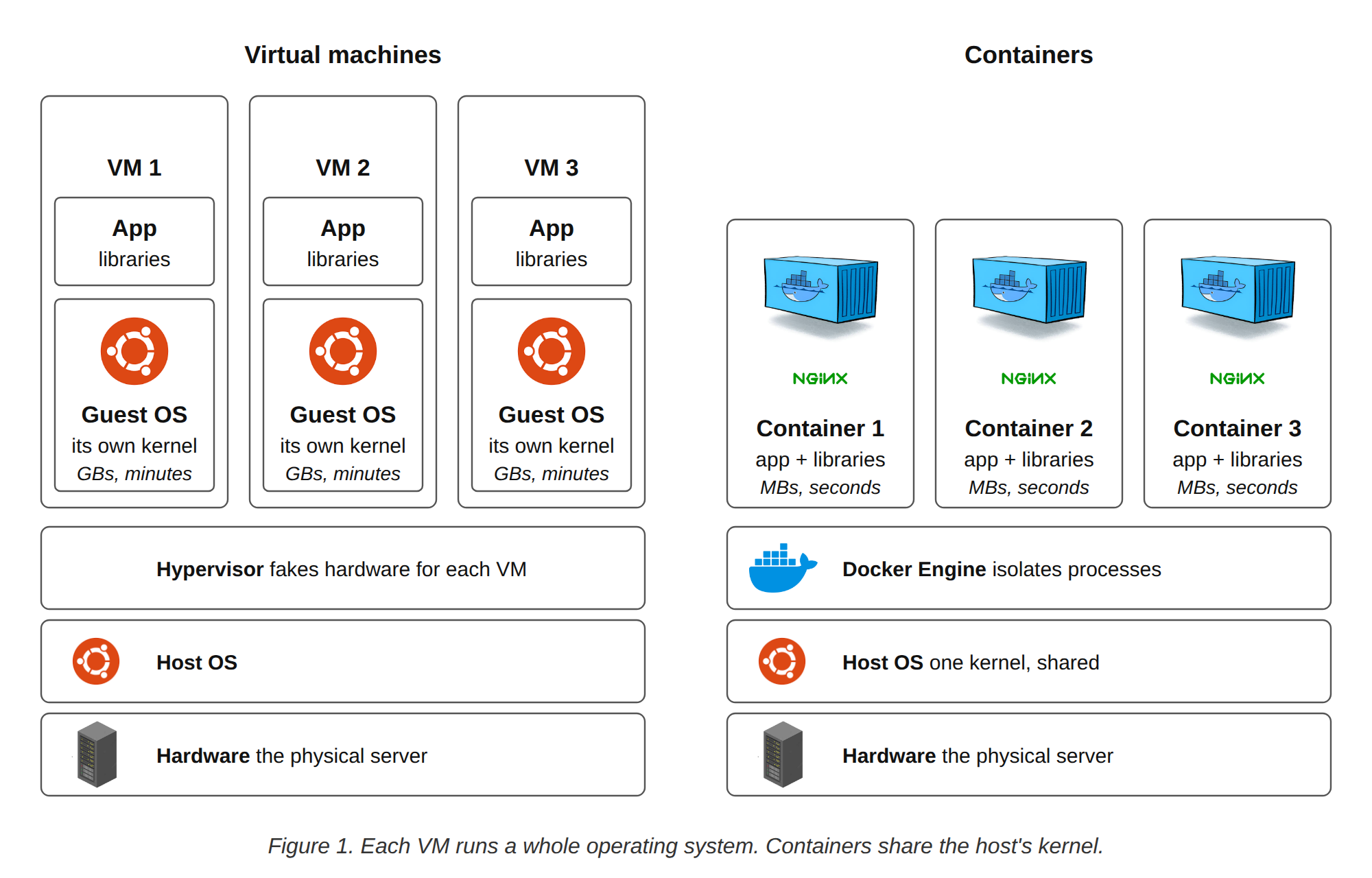
- A virtual machine runs a complete operating system, with its own kernel, on virtual hardware made by a hypervisor. Each VM takes gigabytes of disk and memory and takes a minute or more to boot.
- A container is just an isolated process on the host. It shares the host's Linux kernel and contains only your app and the files it needs. It starts in under a second and often takes only a few megabytes.
The isolation comes from two Linux kernel features:
- Namespaces give each container its own view of processes, network, files and hostname, so it can't see the other containers.
- cgroups limit how much CPU and memory each container can use.
Think of shipping containers, which Docker is named after: whatever you pack inside, the container looks the same from outside, and every ship, train and truck knows how to move it.
Containers and VMs work well together. Most servers in the cloud are VMs, and you run Docker inside them. Docker Desktop on macOS and Windows also runs a small Linux VM behind the scenes, because containers need a Linux kernel.
The Main Pieces
You'll meet these words constantly:
| Term | What it is |
|---|---|
| Dockerfile | A text file of instructions for building an image: the recipe |
| Image | A read-only package of your app and its files, built from a Dockerfile: the template |
| Container | A running instance of an image. You can run many containers from one image |
| Registry | A server that stores images, like Docker Hub, Amazon ECR or GitHub Container Registry |
| Docker Engine | The background service (dockerd) that builds images and runs containers |
| Docker CLI | The docker command, which sends your requests to the engine |
An image is like a class and a container is like an object made from it. Or, closer to ops work: an image is like a VM's ISO file, and a container is the machine you start from it.
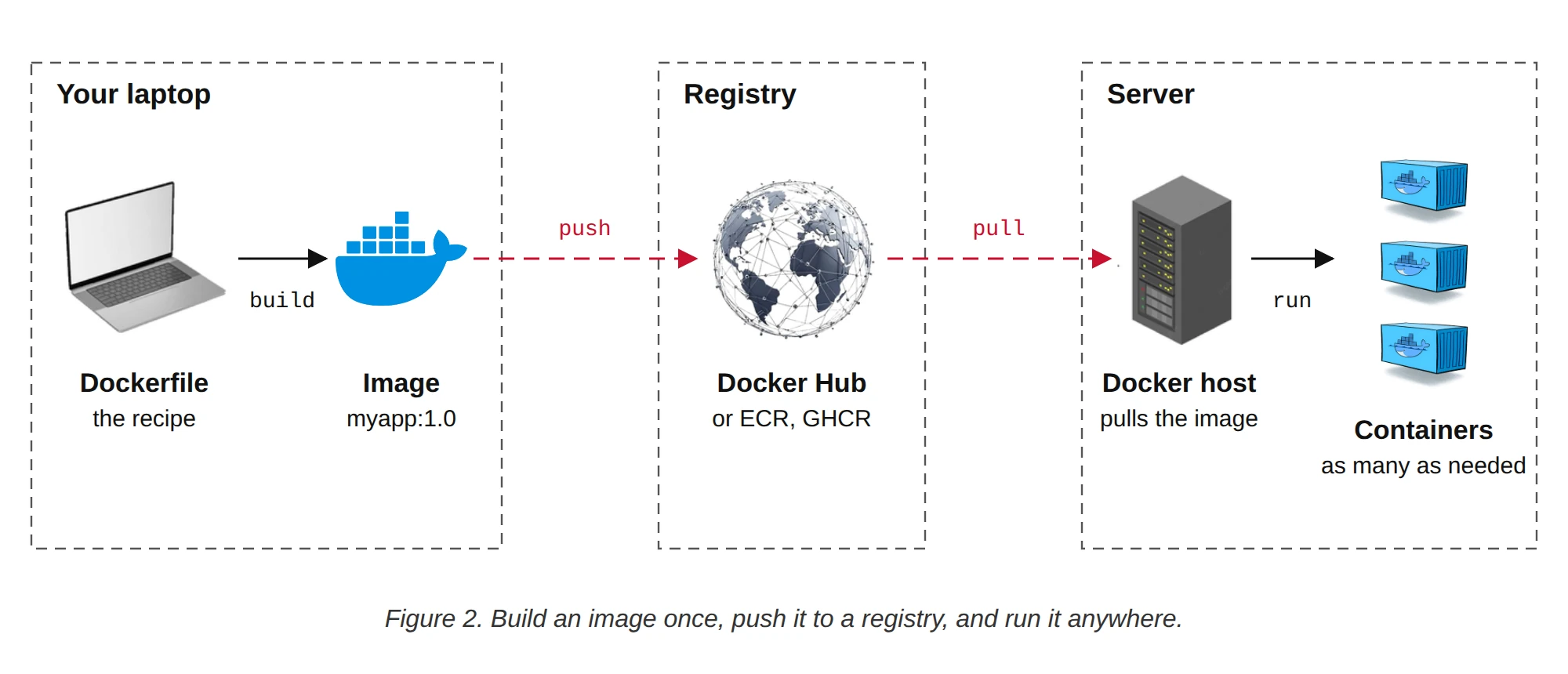
The whole workflow is build, ship, run:
Installing Docker
On Ubuntu, Docker's convenience script installs the latest Docker Engine, the CLI and the Compose plugin:
curl -fsSL https://get.docker.com -o get-docker.sh
sudo sh get-docker.sh
For production servers, Docker's documentation recommends adding its apt repository instead, so updates come through apt. The steps are on docs.docker.com/engine/install/ubuntu. On macOS or Windows, install Docker Desktop.
To run docker without sudo, add yourself to the docker group, then log out and back in:
sudo usermod -aG docker $USER
Be aware that the docker group is effectively root: anyone in it can start a container that mounts the whole host filesystem. Only add users you'd trust with sudo.
Check that it works (output shortened):
furi@lama-MS-7E02:~/myapp$ docker run hello-world
Unable to find image 'hello-world:latest' locally
latest: Pulling from library/hello-world
4f55086f7dd0: Pull complete
Digest: sha256:1e4c05b897a751332ce85c7e9449da2d93514ea2dea6dbb0e2753c9e949b2bfa
Status: Downloaded newer image for hello-world:latest

Hello from Docker!
This message shows that your installation appears to be working correctly.

To generate this message, Docker took the following steps:
 1. The Docker client contacted the Docker daemon.
 2. The Docker daemon pulled the "hello-world" image from the Docker Hub.
    (amd64)
 3. The Docker daemon created a new container from that image which runs the
    executable that produces the output you are currently reading.
 4. The Docker daemon streamed that output to the Docker client, which sent it
    to your terminal.
Those four steps are the whole architecture: the CLI talks to the daemon, the daemon pulls the image from a registry, creates a container, and streams its output back.
Your First Real Container
Let's run Nginx, a web server, in the background:
furi@lama-MS-7E02:~/myapp$ docker run -d --name web -p 8080:80 nginx:1.30-alpine
771fbdb287473ebb2c4f4ce02f8096797150714972e3b62d7666e6cc9801d4c5
furi@lama-MS-7E02:~/myapp$ docker ps
CONTAINER ID   IMAGE               COMMAND                  CREATED        STATUS                  PORTS                                     NAMES
771fbdb28747   nginx:1.30-alpine   "/docker-entrypoint.…"   1 second ago   Up Less than a second   0.0.0.0:8080->80/tcp, [::]:8080->80/tcp   web
furi@lama-MS-7E02:~/myapp$ curl -s localhost:8080 | head -4
<!DOCTYPE html>
<html>
<head>
<title>Welcome to nginx!</title>
What each part of docker run does:
-druns it in the background ("detached").--name webgives it a name to use in other commands. Without one, Docker makes one up.-p 8080:80publishes a port: port 8080 on your machine forwards to port 80 inside the container. The order is alwayshost:container.nginx:1.30-alpineis the image: thenginximage, tag1.30-alpine(Nginx 1.30 on Alpine Linux). The full name isdocker.io/library/nginx:1.30-alpine, and Docker fills in the registry and namespace for official images.
The commands you'll use every day:
docker ps                     # running containers (add -a to include stopped ones)
docker logs web               # the container's output (add -f to follow it)
docker exec -it web sh        # open a shell inside the running container
docker stop web               # stop it (sends SIGTERM, then SIGKILL after 10 seconds)
docker start web              # start a stopped container again
docker rm web                 # delete a stopped container
docker images                 # images on this machine
docker pull postgres:18-alpine   # download an image without running it
docker exec is how you look around inside a container. Many small images, like Alpine ones, have sh but not bash.
Containers Are Disposable
This is the most important idea in Docker, so let's prove it. I change the Nginx page from inside the container, then replace the container:
furi@lama-MS-7E02:~/myapp$ docker exec web sh -c 'echo "<h1>Edited inside the container</h1>" > /usr/share/nginx/html/index.html'
furi@lama-MS-7E02:~/myapp$ curl -s localhost:8080
<h1>Edited inside the container</h1>
furi@lama-MS-7E02:~/myapp$ docker stop web
web
furi@lama-MS-7E02:~/myapp$ docker ps
CONTAINER ID   IMAGE     COMMAND   CREATED   STATUS    PORTS     NAMES
furi@lama-MS-7E02:~/myapp$ docker ps -a
CONTAINER ID   IMAGE               COMMAND                  CREATED         STATUS                              PORTS     NAMES
882a86773068   nginx:1.30-alpine   "/docker-entrypoint.…"   8 seconds ago   Exited (0) Less than a second ago             web
furi@lama-MS-7E02:~/myapp$ docker rm web
web
furi@lama-MS-7E02:~/myapp$ docker run -d --name web -p 8080:80 nginx:1.30-alpine
aab8c358ae472eb829ed12ef710ef7371707c05df00b738b82044ac860da1cfe
furi@lama-MS-7E02:~/myapp$ curl -s localhost:8080 | grep title
<title>Welcome to nginx!</title>
Three things to notice:
docker stopdoesn't delete the container. It disappears fromdocker psbut is still there indocker ps -a, using disk space, until youdocker rmit.- My edit was written to the container's own thin writable layer, not to the image. When I removed the container, the edit went with it.
- The new container started fresh from the image.
So never change a running container by hand. Change the Dockerfile and build a new image, and keep data that must survive in a volume. Both are coming up.
Writing a Dockerfile
Running other people's images is useful, but the real power is packaging your own app. Here's a small Node.js API using Express, in a folder called myapp:
myapp/
├── package.json
├── package-lock.json
└── server.js
server.js answers on port 3000, and uses Postgres if a DATABASE_URL is set (that comes later, with Compose):
const express = require('express')
const { Pool } = require('pg')

const app = express()
const port = process.env.PORT || 3000
// Only use a database when one is configured (Docker Compose sets DATABASE_URL).
const db = process.env.DATABASE_URL ? new Pool({ connectionString: process.env.DATABASE_URL }) : null

app.get('/', async (req, res) => {
  if (!db) return res.send('Hello from Docker!\n')
  await db.query('CREATE TABLE IF NOT EXISTS visits (id SERIAL PRIMARY KEY, at TIMESTAMPTZ DEFAULT now())')
  await db.query('INSERT INTO visits DEFAULT VALUES')
  const { rows } = await db.query('SELECT count(*) FROM visits')
  res.send(`Hello from Docker! Visits: ${rows[0].count}\n`)
})

app.get('/health', (req, res) => res.send('ok\n'))

const server = app.listen(port, () => console.log(`Listening on port ${port}`))

// docker stop sends SIGTERM: close cleanly instead of waiting to be killed.
process.on('SIGTERM', () => {
  console.log('SIGTERM received, shutting down')
  server.close(() => process.exit(0))
})
And its Dockerfile:
FROM node:24-alpine

WORKDIR /app

# Dependencies first: this layer is reused until package*.json change.
COPY package.json package-lock.json ./
RUN npm ci --omit=dev

# Then the code, which changes on every commit.
COPY . .

USER node
EXPOSE 3000
CMD ["node", "server.js"]
Line by line:
| Instruction | What it does |
|---|---|
FROM node:24-alpine |
Starts from the official Node.js 24 image on Alpine Linux, a small base |
WORKDIR /app |
Creates /app and makes it the current folder for everything after |
COPY package.json package-lock.json ./ |
Copies just the dependency files into the image |
RUN npm ci --omit=dev |
Runs a command while building: installs exact versions from the lockfile, without dev dependencies |
COPY . . |
Copies the rest of the code |
USER node |
Runs the app as the unprivileged node user that the image includes, not as root |
EXPOSE 3000 |
Documents the port the app listens on. It does not publish it |
CMD ["node", "server.js"] |
The command to run when a container starts |
Next to the Dockerfile, add a .dockerignore so local junk and secrets never get copied into the image:
node_modules
npm-debug.log
.git
.env
Dockerfile
.dockerignore
Build the image and give it a name and tag:
docker build -t myapp:1.0 .
The . at the end is the build context: the folder whose files the build can COPY. Then run it:
furi@lama-MS-7E02:~/myapp$ docker run -d --name api -p 3000:3000 myapp:1.1
1e1a27f4797b555d535c96f02daf7ef767fbd97b8ce838001e19a86451454845
furi@lama-MS-7E02:~/myapp$ curl -s localhost:3000
Hello from Docker! (v1.1)
furi@lama-MS-7E02:~/myapp$ docker exec api whoami
node
furi@lama-MS-7E02:~/myapp$ time docker stop api
api

real	0m0.273s
user	0m0.045s
sys	0m0.027s
furi@lama-MS-7E02:~/myapp$ docker logs api
Listening on port 3000
SIGTERM received, shutting down
(I'd changed one line and built version 1.1 by then, as the next section shows.) The app runs as node, not root, and stops in a quarter of a second because it handles SIGTERM. You'll see later what happens when it doesn't.
RUN vs CMD vs ENTRYPOINT
These confuse almost everyone at first:
RUNruns duringdocker build, and its result is saved in the image. Use it to install packages and build your code.CMDis the default command when a container starts. There's only one: if you write several, the last one wins. Anything you type after the image name indocker runreplaces it, which is howdocker run myapp:1.0 shgives you a shell instead.ENTRYPOINTis a fixed command that always runs, withCMDpassed to it as arguments. Use it when the image is really one program, like a CLI tool.
Always write CMD and ENTRYPOINT in the JSON exec form, CMD ["node", "server.js"], not the shell form CMD node server.js. The shell form runs your app inside /bin/sh, which causes the slow-stop problem in the mistakes section below.
Layers and the build cache
Each instruction in a Dockerfile creates a layer, and Docker caches every layer. When you rebuild, Docker reuses each cached layer until it reaches the first instruction whose input changed. From that point on, everything is rebuilt.
That's why the Dockerfile copies package.json and runs npm ci before copying the code. I changed one line in server.js and rebuilt:
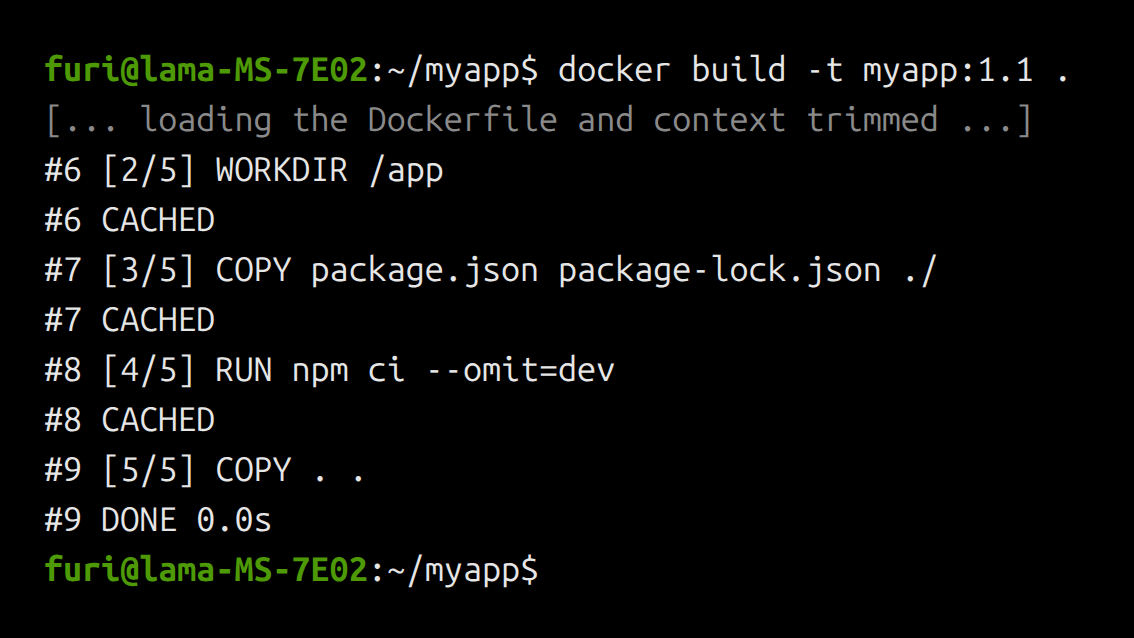
npm ci was skipped because package.json and package-lock.json hadn't changed. On a real project that turns a two-minute build into a two-second one. If the Dockerfile had copied all the code first, every code change would reinstall every dependency.
Keeping Data: Volumes and Bind Mounts
A container's own files disappear with it, as you saw. Anything that must survive, like a database's data, uploaded files or logs you want to keep, goes in one of two places:
- Volumes are storage managed by Docker (kept under
/var/lib/docker/volumes/). Use them for databases and anything in production. - Bind mounts map a folder from your machine into the container. Use them in development, so code you edit on your machine shows up in the container immediately.
Here's a Postgres database with its data in a volume. I add a row, delete the container completely, then start a new one with the same volume:
furi@lama-MS-7E02:~/myapp$ docker volume create pgdata
pgdata
furi@lama-MS-7E02:~/myapp$ docker run -d --name db -e POSTGRES_PASSWORD=example -v pgdata:/var/lib/postgresql postgres:18-alpine
00b8e339c09146dffd60d0329cf49656496d16cbb29baea6c56a9520bd9e0e9a
furi@lama-MS-7E02:~/myapp$ docker exec db psql -U postgres -c "CREATE TABLE notes (body TEXT); INSERT INTO notes VALUES ('I survive container removal');"
CREATE TABLE
INSERT 0 1
furi@lama-MS-7E02:~/myapp$ docker rm -f db
db
furi@lama-MS-7E02:~/myapp$ docker run -d --name db -e POSTGRES_PASSWORD=example -v pgdata:/var/lib/postgresql postgres:18-alpine
5a6067c49f4910fe3a6f25bdc8c4fb604973595370c5ad43508e954434edf2ee
furi@lama-MS-7E02:~/myapp$ docker exec db psql -U postgres -c "SELECT * FROM notes;"
            body
-----------------------------
 I survive container removal
(1 row)
The data outlived the container. -v pgdata:/var/lib/postgresql mounts the volume pgdata at the folder where Postgres keeps its data. (Postgres 18 images keep it there; for 17 and older, mount /var/lib/postgresql/data.)
A bind mount uses a path on your machine instead of a volume name. This serves a folder of HTML you're editing, read-only (:ro), so the container can't change it:
docker run -d --name site -p 8080:80 -v "$PWD/site":/usr/share/nginx/html:ro nginx:1.30-alpine
Why volumes rather than bind mounts in production: Docker manages where they live, they don't depend on a particular folder existing on the server, they're easier to back up, and nobody deletes them by accident while tidying up the host's files.
Useful commands:
docker volume ls              # list volumes
docker volume inspect pgdata  # where it lives and who uses it
docker volume rm pgdata       # delete it, and its data, for good
Networking: How Containers Talk
Docker gives each container its own network interface and IP address. Two things matter in practice: reaching a container from outside, and containers reaching each other.
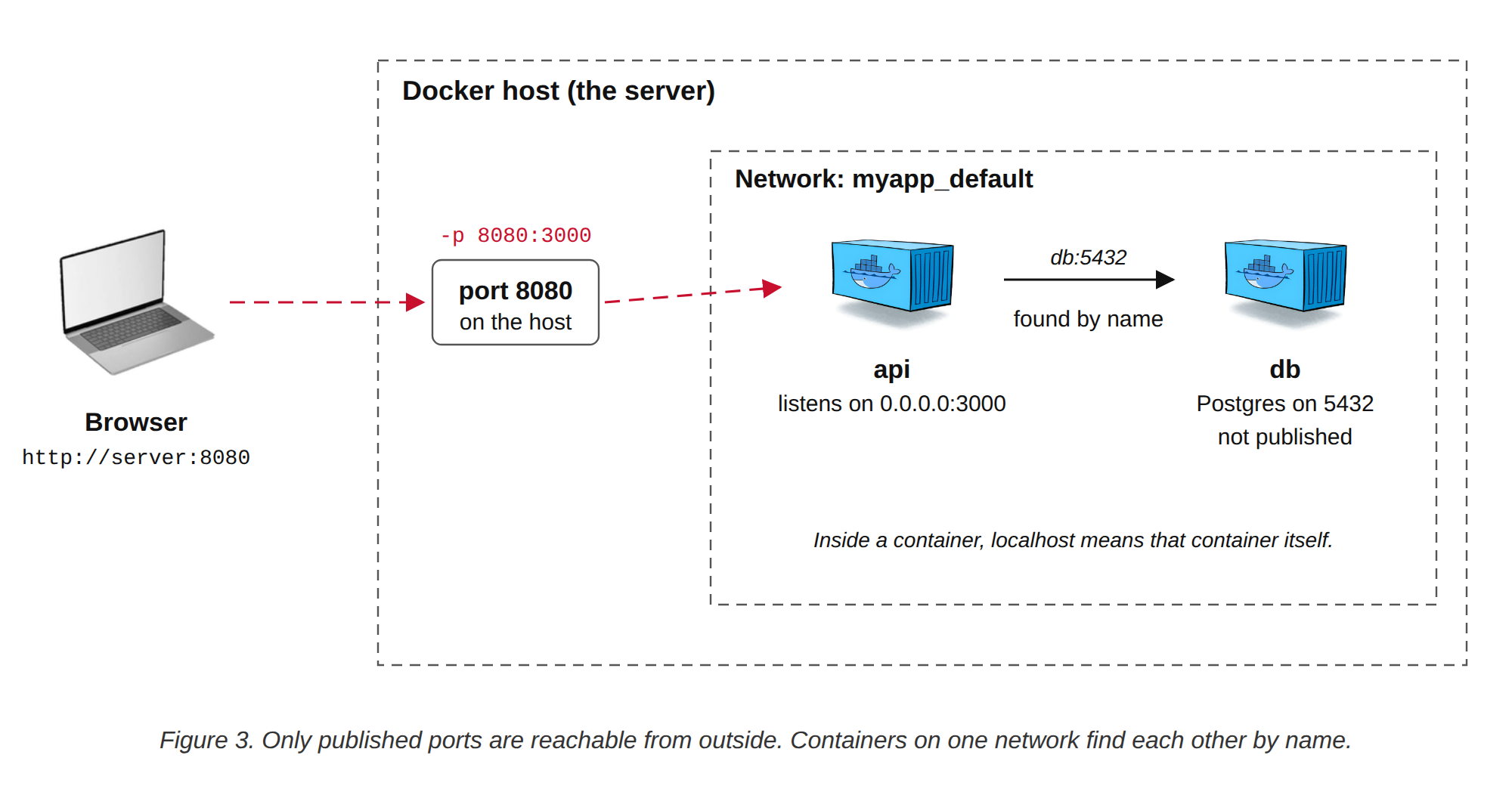
- From outside, only published ports (
-p) are reachable. Your database doesn't need one: only your app talks to it. - Between containers, put them on the same user-defined network. Docker then runs a small DNS server, so containers find each other by name.
Here's the name lookup working, and the two ways it fails:
furi@lama-MS-7E02:~/myapp$ docker network create mynet
a7537a6608436c236d142b89a2a4728d27da1a2f792b56eded6c68511eb0740b
furi@lama-MS-7E02:~/myapp$ docker run -d --name db --network mynet -e POSTGRES_PASSWORD=example -v pgdata:/var/lib/postgresql postgres:18-alpine
718ec33c970deb4167463ad761bcdb69f9c088288caa1b538c8768437f3d08de
furi@lama-MS-7E02:~/myapp$ docker run --rm --network mynet postgres:18-alpine pg_isready -h db
db:5432 - accepting connections
furi@lama-MS-7E02:~/myapp$ docker run --rm --network mynet postgres:18-alpine pg_isready -h localhost
localhost:5432 - no response
furi@lama-MS-7E02:~/myapp$ docker run --rm postgres:18-alpine pg_isready -h db
db:5432 - no response
- On
mynet, the namedbworks. localhostdoesn't, because inside a container,localhostis that container, not your machine or another container.- Without
--network mynet, the container is on Docker's default bridge network, which doesn't resolve container names at all.
Docker's network drivers, for reference:
| Driver | Use |
|---|---|
bridge |
The default: a private network on one host. Create your own with docker network create |
host |
The container uses the host's network directly, with no isolation and no -p needed. Mainly for Linux |
none |
No network at all |
overlay |
One network across several Docker hosts, for Docker Swarm |
macvlan |
Gives a container its own address on your physical network |
Docker Compose: The Whole App in One File
Typing long docker run commands for every container gets old fast. Docker Compose describes your whole app (its containers, networks and volumes) in one compose.yaml file, and starts it with one command.
Here's the API and Postgres together:
name: myapp

services:
  api:
    build: .
    ports:
      - "3000:3000"
    environment:
      DATABASE_URL: postgres://postgres:${DB_PASSWORD}@db:5432/postgres
    depends_on:
      db:
        condition: service_healthy
    restart: unless-stopped

  db:
    image: postgres:18-alpine
    environment:
      POSTGRES_PASSWORD: ${DB_PASSWORD}
    volumes:
      - pgdata:/var/lib/postgresql
    healthcheck:
      test: ["CMD", "pg_isready", "-U", "postgres"]
      interval: 5s
      retries: 5
    restart: unless-stopped

volumes:
  pgdata:
- Each entry under
servicesbecomes a container.apiis built from the Dockerfile in this folder,dbuses a ready-made image. - Compose creates a network for the project automatically, so
apireaches the database at the host namedb, as inDATABASE_URL. ${DB_PASSWORD}is read from a.envfile next tocompose.yaml, so the password stays out of the file you commit. Add.envto.gitignore.depends_onwithcondition: service_healthywaits until the database'shealthcheckpasses before starting the API. Without it, the API can start before Postgres is ready and crash.restart: unless-stoppedbrings containers back after a crash or a reboot.- The database has no
ports, so it isn't reachable from outside.
The .env file:
DB_PASSWORD=change-me-locally
Start everything with docker compose up -d --build, then check it:
furi@lama-MS-7E02:~/myapp$ docker compose up -d --build
 Image myapp-api Built
 Volume myapp_pgdata Created
 Network myapp_default Created
 Container myapp-db-1 Started
 Container myapp-db-1 Healthy
 Container myapp-api-1 Started
furi@lama-MS-7E02:~/myapp$ docker compose ps
NAME          IMAGE                COMMAND                  SERVICE   CREATED         STATUS                   PORTS
myapp-api-1   myapp-api            "docker-entrypoint.s…"   api       7 seconds ago   Up 1 second              0.0.0.0:3000->3000/tcp, [::]:3000->3000/tcp
myapp-db-1    postgres:18-alpine   "docker-entrypoint.s…"   db        7 seconds ago   Up 6 seconds (healthy)   5432/tcp
furi@lama-MS-7E02:~/myapp$ curl -s localhost:3000
Hello from Docker! Visits: 1
furi@lama-MS-7E02:~/myapp$ curl -s localhost:3000
Hello from Docker! Visits: 2
furi@lama-MS-7E02:~/myapp$ docker compose down
furi@lama-MS-7E02:~/myapp$ docker compose up -d
furi@lama-MS-7E02:~/myapp$ curl -s localhost:3000
Hello from Docker! Visits: 3
(I've shortened Compose's progress lines.) docker compose down removed both containers and the network, but the count carried on at 3, because the data is in the pgdata volume. docker compose down -v deletes the volumes too, and with them the data.
The Compose commands you'll use most:
docker compose up -d          # create and start everything in the background
docker compose up -d --build  # rebuild images first (after code changes)
docker compose ps             # status of each service
docker compose logs -f api    # follow one service's logs
docker compose exec db psql -U postgres   # run a command in a service
docker compose down           # stop and remove containers and the network
docker compose down -v        # ...and the volumes, with their data
Use docker compose (with a space), the plugin built into Docker today. The old standalone docker-compose command and the version: line at the top of the file are both obsolete.
Sharing Images Through a Registry
To run your image on a server, push it to a registry and pull it there. With a free Docker Hub account:
docker login
docker tag myapp:1.0 yourname/myapp:1.0
docker push yourname/myapp:1.0
Then on the server:
docker pull yourname/myapp:1.0
docker run -d -p 3000:3000 yourname/myapp:1.0
On AWS you'd use Amazon ECR, and GitHub has its own registry, GHCR. The commands are the same apart from the image name, which starts with the registry's address. In real projects, a CI pipeline such as GitHub Actions builds and pushes the image on every merge.
Docker Best Practices
These make the difference between an image that works and one that's ready for production. Most of them are already in the Dockerfile above.
Use small, official base images, pinned to a version
Official images (node, python, nginx, postgres) are maintained and patched. Pick a small variant (-alpine, or -slim if Alpine's musl library causes problems), and pin the version: node:24-alpine, not node or node:latest. For fully repeatable builds you can even pin the exact digest: node:24-alpine@sha256:....
Order instructions for the cache
Things that change least go first: base image, system packages, dependency files, dependency install, and your code last.
Use multi-stage builds
Building often needs tools that running doesn't: compilers, dev dependencies, the whole Node.js toolchain for a frontend. A multi-stage build builds in one stage and copies only the result into a clean, small final image. Here's a Vite frontend built with Node.js and served by Nginx:
# Stage 1: build the site with Node and all its dev dependencies.
FROM node:24-alpine AS build
WORKDIR /app
COPY package.json package-lock.json ./
RUN npm ci
COPY . .
RUN npm run build

# Stage 2: copy only the built files into a small web server image.
FROM nginx:1.30-alpine
COPY --from=build /app/dist /usr/share/nginx/html
Compared with the same site built and served in one Node.js stage:
furi@lama-MS-7E02:~/myapp$ docker image ls frontend
IMAGE             ID             DISK USAGE   CONTENT SIZE   EXTRA
frontend:multi    c73c5736de96       92.7MB         26.1MB
frontend:single   72793bdea055        291MB         77.8MB
A third of the size. The final image has no Node.js, no node_modules and no source code: less to download, less to scan and less for an attacker to use.
Keep secrets out of images
Anything you COPY or set with ENV or ARG stays in the image, and anyone who can pull the image can read it. Pass secrets when the container starts, as environment variables (-e, Compose's environment, .env files that are never committed) or through your platform's secret manager. Exclude .env in .dockerignore.
Run as a non-root user
Add USER to your Dockerfile. Many official images include one: node in Node.js images. Otherwise create one with RUN adduser -D appuser (Alpine) or RUN useradd -m appuser (Debian and Ubuntu).
One process per container
Run your API in one container and the database in another, not both in one. Each can then be restarted, updated and scaled on its own, and Docker's logs and health checks work as intended.
Log to stdout and stderr
Don't write log files inside the container. Print to the console, and docker logs (or your log collector) picks it up.
Handle shutdown, and add health checks
Use the exec form of CMD, and handle SIGTERM in your app, or start the container with docker run --init. Add a healthcheck so Docker and Compose know when your app is actually ready, not just started.
Set limits and restart policies
--memory 512m --cpus 1 (or Compose's deploy.resources.limits) stop one container from starving the rest of the server. --restart unless-stopped brings it back after a crash.
Rebuild and scan regularly
Base images get security fixes all the time, but your image only gets them when you rebuild it. Rebuild regularly, and scan images for known vulnerabilities with a tool like Docker Scout (in Docker Desktop) or Trivy (trivy image myapp:1.0).
Common Beginner Misunderstandings
"A container is a lightweight VM"
It's a process. There's no separate kernel and no boot. That's why it starts in milliseconds, and why a Linux container needs a Linux kernel: on macOS and Windows, Docker Desktop runs one in a hidden VM.
"My changes inside the container are saved"
Only until the container is removed, as the Nginx example showed. The image never changes. Keep data in volumes, and change images through the Dockerfile.
"EXPOSE opens the port"
EXPOSE is documentation. Only -p (or ports: in Compose) publishes a port to your machine.
"localhost in a container means my machine"
It means the container itself. To reach another container, use its name on a shared network. To reach a service on the host from a container, Docker Desktop provides the name host.docker.internal. On Linux, add --add-host=host.docker.internal:host-gateway.
"latest means the newest stable version"
latest is just a tag name, the default when you don't give one. It's whatever the image's maintainer last tagged as latest, which may change under you without warning. Pin versions.
"Stopping a container removes it"
docker stop only stops it. Stopped containers stay until you docker rm them, and old images, volumes and build cache pile up too, until the disk is full. Use docker run --rm for throwaway containers, and check docker system df now and then.
"Containers are a security boundary, so root inside is fine"
Containers share the host's kernel. Root in a container is the same root user as on the host, held back only by the container's restrictions. A kernel bug or a careless mount can let it out. Run as a non-root user, and treat the docker group like sudo.
"An image built on my laptop runs on any server"
Only if the CPU architecture matches. An image built on an Apple Silicon Mac is arm64 by default, and on a normal amd64 cloud server it fails with exec format error. Build for the server's platform with docker buildx build --platform linux/amd64 ..., or for both at once.
"I need Kubernetes to use Docker"
You don't. A single server with Docker Compose runs plenty of real production apps. Kubernetes is for running containers across many servers, as the last section explains.
Beginner Mistakes (and How to Avoid Them)
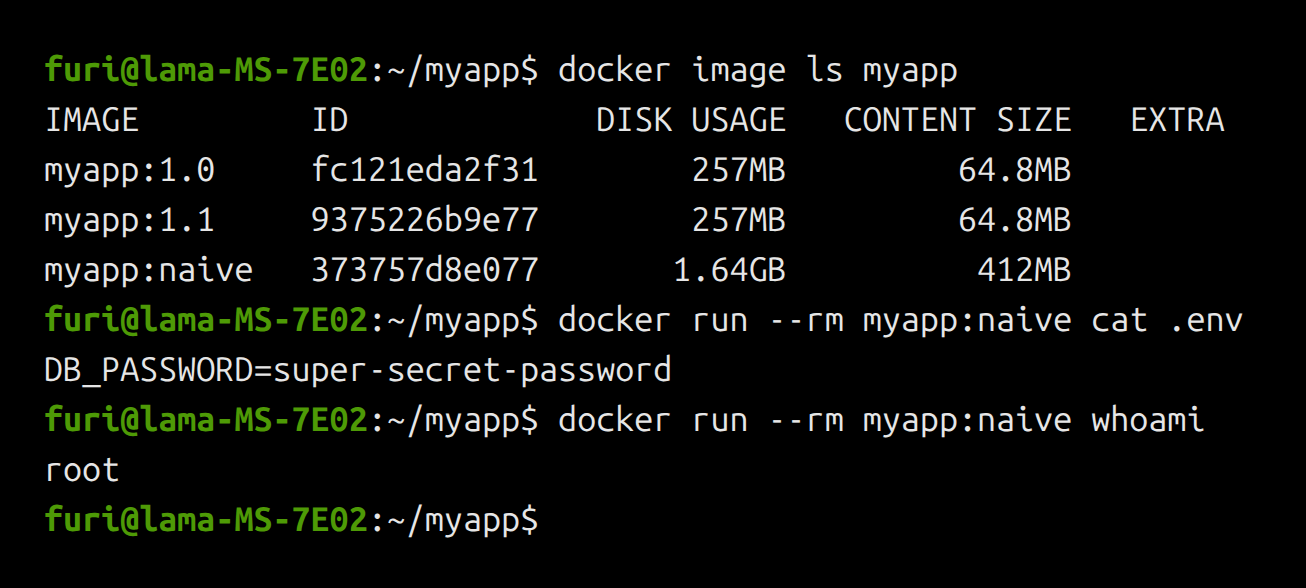
To show several mistakes at once, I built the same app with the kind of Dockerfile many people write on their first day, with a .env file in the folder and no .dockerignore:
FROM node:24
COPY . .
RUN npm install
CMD npm start
1. Putting secrets in the image
No .dockerignore, so COPY . . copied the .env file, and the password is readable by anyone who pulls the image. Deleting the file in a later layer doesn't help: it's still in the earlier layer. If a secret ever ends up in an image you've pushed, change the secret.
2. Huge images
node:24 includes a full Debian system with compilers. The naive image takes 1.64 GB, against 257 MB for the Alpine version, a six-fold difference in disk, download time and things that can have vulnerabilities. Copying node_modules and .git from your machine makes it worse.
3. Running as root
whoami says root. If someone breaks into the app, they're root inside the container. Add USER.
4. Copying the code before installing dependencies
COPY . . before npm install means every code change reinstalls every dependency. Copy the dependency files first, as in the cached build above.
5. Shell-form CMD: the container takes 10 seconds to stop
CMD npm start runs your app under /bin/sh:
furi@lama-MS-7E02:~/myapp$ docker run -d --name naive myapp:naive
bc0b087ff9b4cf3fa35271b1821088ea55be471b3f534621e6805b3fa354e3ff
furi@lama-MS-7E02:~/myapp$ docker exec naive ps -o pid,comm
    PID COMMAND
      1 sh
      8 npm start
     19 sh
     20 MainThread
     27 ps
furi@lama-MS-7E02:~/myapp$ time docker stop naive
naive

real	0m10.261s
user	0m0.039s
sys	0m0.034s
docker stop sends SIGTERM to process 1, which is sh, and sh doesn't pass it on to your app. Docker waits 10 seconds, then kills everything with SIGKILL: no clean shutdown, in-flight requests are dropped, and every deploy is 10 seconds slower. The proper Dockerfile stopped in 0.27 seconds. Use the exec form, CMD ["node", "server.js"]. If you can't change the image, docker run --init adds a tiny init process that forwards signals: with it, the same naive image stopped in 0.22 seconds.
6. The app listens on 127.0.0.1
Many dev servers listen only on localhost by default. Inside a container, that means only the container itself can connect, so -p can't reach it, and the browser gets "connection reset" or "empty reply". Make the app listen on 0.0.0.0. For Vite that's vite --host; for Flask, flask run --host=0.0.0.0.
7. Publishing the database to the internet
-p 5432:5432 opens the database on every network interface of the server. Worse, Docker writes its own firewall rules, so published ports bypass UFW: ufw deny 5432 won't block it. Don't publish database ports at all. If you need to reach one from the host, bind it to localhost only: -p 127.0.0.1:5432:5432.
8. Using latest or no tag
Your build works today and breaks next month when latest moves to a new major version. Pin versions in FROM and in Compose.
9. Separate apt-get update and apt-get install lines
# Wrong: the update layer gets cached, and a later install uses an old package list.
RUN apt-get update
RUN apt-get install -y curl

# Right: one layer, and the package lists are deleted to keep the image small.
RUN apt-get update && apt-get install -y --no-install-recommends curl \
    && rm -rf /var/lib/apt/lists/*
10. Never cleaning up
Old images, stopped containers and build cache can quietly fill a server's disk. See what's using space and clean up:
docker system df              # space used by images, containers, volumes and build cache
docker system prune           # remove stopped containers, unused networks, dangling images and unused build cache
docker image prune -a         # also remove every image no container uses
docker system prune leaves volumes alone unless you add --volumes, so your data stays safe. My Linux troubleshooting post covers what to do when the disk is already full.
A Short Introduction to Kubernetes
Docker and Compose run containers on one machine. Real production systems usually need more:
- run the app on many servers, so losing one doesn't take the site down
- restart crashed containers and move them off a failed server automatically
- scale from 3 copies to 30 when traffic grows
- update without downtime, replacing containers a few at a time, and roll back if the new version fails
- spread traffic across all copies, wherever they run
Kubernetes (often written K8s) does all of this. It's a container orchestrator: you describe what you want ("three copies of myapp:1.0, reachable on port 80"), and Kubernetes keeps reality matching that description, all the time.
The main ideas:
| Term | What it is |
|---|---|
| Cluster | A group of machines run by Kubernetes: a control plane that makes decisions, and worker nodes that run containers |
| Pod | The smallest unit: one container (sometimes a few) with a shared network address |
| Deployment | Keeps a set number of identical pods running, and handles rolling updates and rollbacks |
| Service | One stable address and load balancer in front of a set of pods, whose own addresses keep changing |
| Ingress | Routes outside HTTP traffic (domains, paths) to services |
| ConfigMap / Secret | Configuration and secrets given to pods, kept out of the image |
You describe these in YAML and apply them with kubectl. Here's the API from this post as a Deployment of three pods behind a Service:
apiVersion: apps/v1
kind: Deployment
metadata:
  name: myapp
spec:
  replicas: 3
  selector:
    matchLabels:
      app: myapp
  template:
    metadata:
      labels:
        app: myapp
    spec:
      containers:
        - name: api
          image: yourname/myapp:1.0
          ports:
            - containerPort: 3000
---
apiVersion: v1
kind: Service
metadata:
  name: myapp
spec:
  selector:
    app: myapp
  ports:
    - port: 80
      targetPort: 3000
kubectl apply -f myapp.yaml creates both. If a pod crashes or its node dies, the Deployment starts a replacement. Change the image to myapp:1.1 and apply again, and it rolls the new version out one pod at a time.
How this relates to Docker:
- Kubernetes runs the same images you build with Docker. Images follow the open OCI standard, so any image you push works.
- Kubernetes doesn't use the Docker Engine to run them. Since version 1.24 it talks to a container runtime like containerd (which Docker itself uses underneath) or CRI-O.
- So you still use Docker every day: to build images, run them locally and test them. Kubernetes takes over in production.
Do you need it? For one app on one or two servers, no. Docker Compose is simpler and enough. Kubernetes earns its complexity when you run many services across many machines, need zero-downtime deploys and automatic recovery, or your company already runs it. To try it without paying for a cluster, run one on your own machine with kind, minikube or k3s. In the cloud, Amazon EKS, Google GKE and Azure AKS run the control plane for you.
Learn Docker properly first. Everything in this post (images, ports, volumes, environment variables, health checks) carries straight over into Kubernetes.
Troubleshooting
| Error | Usually means | Fix |
|---|---|---|
permission denied while trying to connect to the docker API, or failed to connect to the docker API ... check if the daemon is running |
You're not in the docker group, or the daemon isn't running |
sudo usermod -aG docker $USER and log in again, or sudo systemctl start docker |
Bind for 0.0.0.0:3000 failed: port is already allocated |
Another container or program has that host port | docker ps to find it, or use another host port: -p 3001:3000 |
The container name "/web" is already in use |
A stopped container still has that name | docker rm web, or docker run --rm next time |
The container exits immediately (Exited (0) or Exited (1)) |
Its main process finished or crashed. A container lives only as long as its main process | docker logs <name>. Images like node or ubuntu with no long-running command exit at once |
exec format error |
The image was built for another CPU architecture | docker buildx build --platform linux/amd64 |
Exited (137) |
Killed with SIGKILL: out of memory, or it ignored SIGTERM |
docker inspect <name> --format '{{.State.OOMKilled}}' |
no space left on device |
Images, containers and build cache filled the disk | docker system df, then docker system prune |
The app can't reach the database at localhost |
localhost is the app's own container |
Use the service name, like db, on a shared network |
| The browser can't connect, but the container is running | The port isn't published, or the app listens on 127.0.0.1 |
Check PORTS in docker ps, and make the app listen on 0.0.0.0 |
Docker Cheat Sheet
| Task | Command |
|---|---|
| Run a container in the background | docker run -d --name web -p 8080:80 nginx:1.30-alpine |
| Run a throwaway container with a shell | docker run --rm -it ubuntu bash |
| List running / all containers | docker ps / docker ps -a |
| Show logs, and follow them | docker logs web, docker logs -f web |
| Shell inside a container | docker exec -it web sh |
| Stop, start, remove | docker stop web, docker start web, docker rm web |
| Build an image | docker build -t myapp:1.0 . |
| List images | docker images |
| Tag and push an image | docker tag myapp:1.0 yourname/myapp:1.0, docker push yourname/myapp:1.0 |
| Create and list volumes | docker volume create pgdata, docker volume ls |
| Mount a volume | docker run -v pgdata:/var/lib/postgresql ... |
| Bind mount a folder, read-only | docker run -v "$PWD/site":/usr/share/nginx/html:ro ... |
| Create a network and use it | docker network create mynet, docker run --network mynet ... |
| Start a Compose app | docker compose up -d --build |
| Compose status and logs | docker compose ps, docker compose logs -f api |
| Stop a Compose app (and delete its data) | docker compose down (down -v) |
| Disk usage and cleanup | docker system df, docker system prune |
| Full details of a container | docker inspect web |
| Live CPU and memory use | docker stats |
Wrapping Up
The main points:
- A container is an isolated process sharing the host's kernel, started from a read-only image.
- Containers are disposable. Change images through the Dockerfile, and keep data in volumes.
- Order your Dockerfile for the cache, use small pinned base images and multi-stage builds, and run as a non-root user.
- Keep secrets out of images, and don't publish ports that don't need to be public.
- Use Docker Compose for an app on one server, and learn Kubernetes when you need many.
The best way to learn Docker is to containerize something you've already built. Take one of your own projects, write a Dockerfile and a compose.yaml for it, and get it running with one command. Then push the image to Docker Hub and run it on a cloud server.
This post started as my notes on Learn Docker – Full DevOps Course for Deploying Containerized Apps, by Eissa from DolfinEd on freeCodeCamp. It's seven hours long and covers all of this in much more depth, including setting up Docker on AWS.